The five tabs
The bottom bar is the whole app:
| Tab | What it is for |
|---|---|
| Dashboard | Today at a glance: sales, revenue, items sold, low stock. |
| Products | Browse, search and edit what you sell. |
| Cart | Ring up a sale. |
| Sales | Past transactions: paid, pending, partial, refunded. |
| More | Everything else: customers, stock, reports, staff, settings. |
You can start in any tab. Cart is the default, so opening the app puts the till one tap away.
Reading the dashboard
The screen opens with a greeting and the date, then four cards answer the questions you ask first:
| Card | Meaning |
|---|---|
| Today's Sales | Number of transactions so far today. |
| Revenue | Money taken today. |
| Products Sold | Items that left the shelf today. |
| Low Stock | Items at or below their minimum. Green when zero. |
Under the cards a summary row shows Month Revenue, Month Sales and Customers for the month so far.
Below that:
| Section | What it shows |
|---|---|
| This Week's Activity | A bar chart of the week, day by day. |
| Today's Products | The top five products sold today, or a note that nothing has sold yet. |
| Recent Sales | The latest transactions. Tap one to open it in full. |
If a banner from the business is set up it appears near the top, and when sales are still waiting to upload the dashboard says how many are pending until they arrive.
With no saved data yet, the dashboard shows an offline notice instead of the figures: it fills in as soon as the app has something to show.
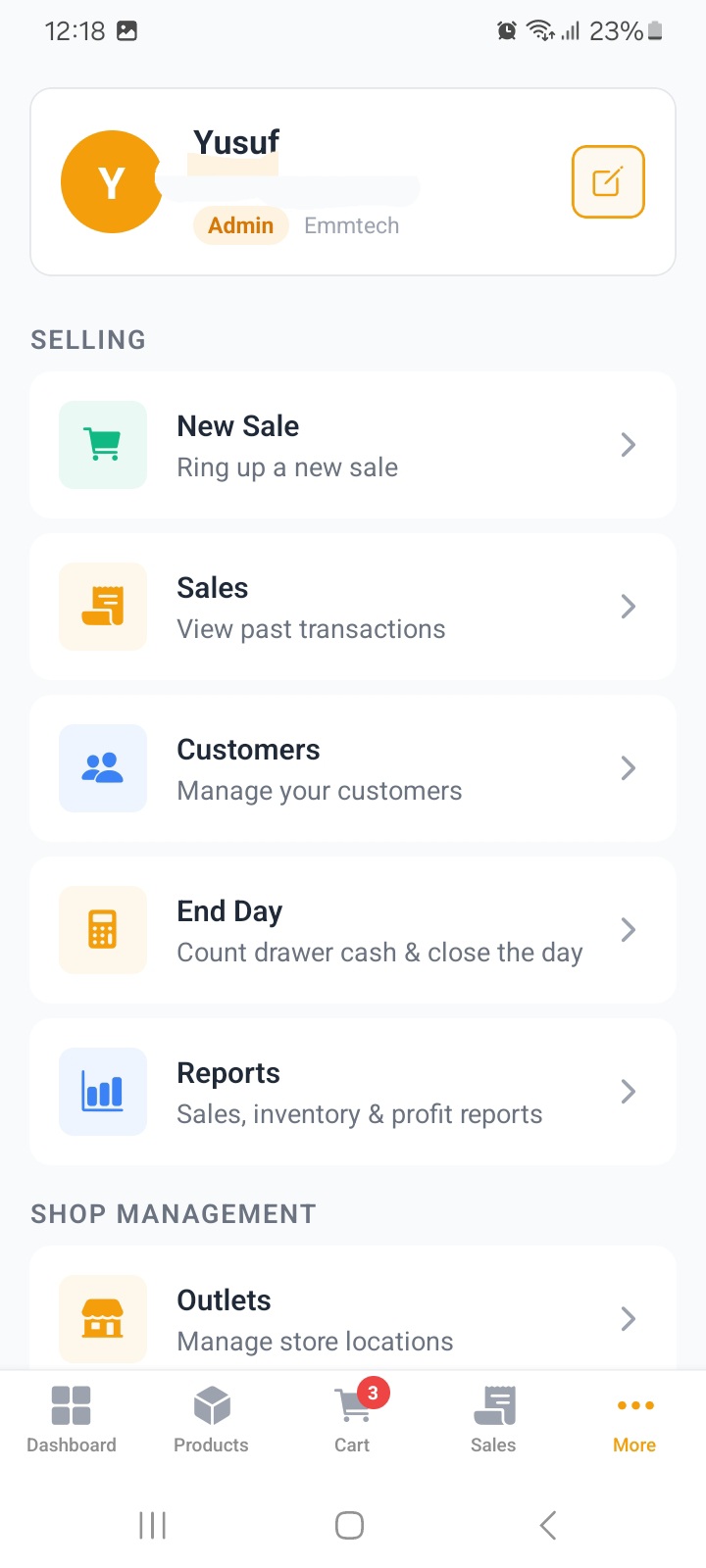
The More menu
More holds everything that is not the till, grouped into sections:
| Item | What it does |
|---|---|
| New Sale | Straight back to the cart. |
| Sales | Search and open past transactions. |
| Customers | Customer list, balances and history. |
| End Day | Count the drawer and close the day (owners only). |
| Reports | Every report the business can run (managers and owners). |
| Outlets | Store locations. |
| Staff | Users and roles. |
| Inventory | Stock, products, movements, counts, suppliers, purchase orders. |
| Status | Connection, sync state and subscription. |
| Settings | Business details, security, printer, data. |
When the business has set them up, a Learn & Community section adds Watch Tutorials and a community link.
Not every role sees every item: Staff and roles explains who sees what.
A good first hour
- Install the app and create your account.
- Settings, then Business Details: add your name, address and receipt footer. This is what prints on receipts.
- Add a few products, or import them from a CSV if you already have a list.
- Ring a test sale and look at the receipt.
- Open Reports and try a date range.
You can change any of it later, and nothing here is destructive.