Add items
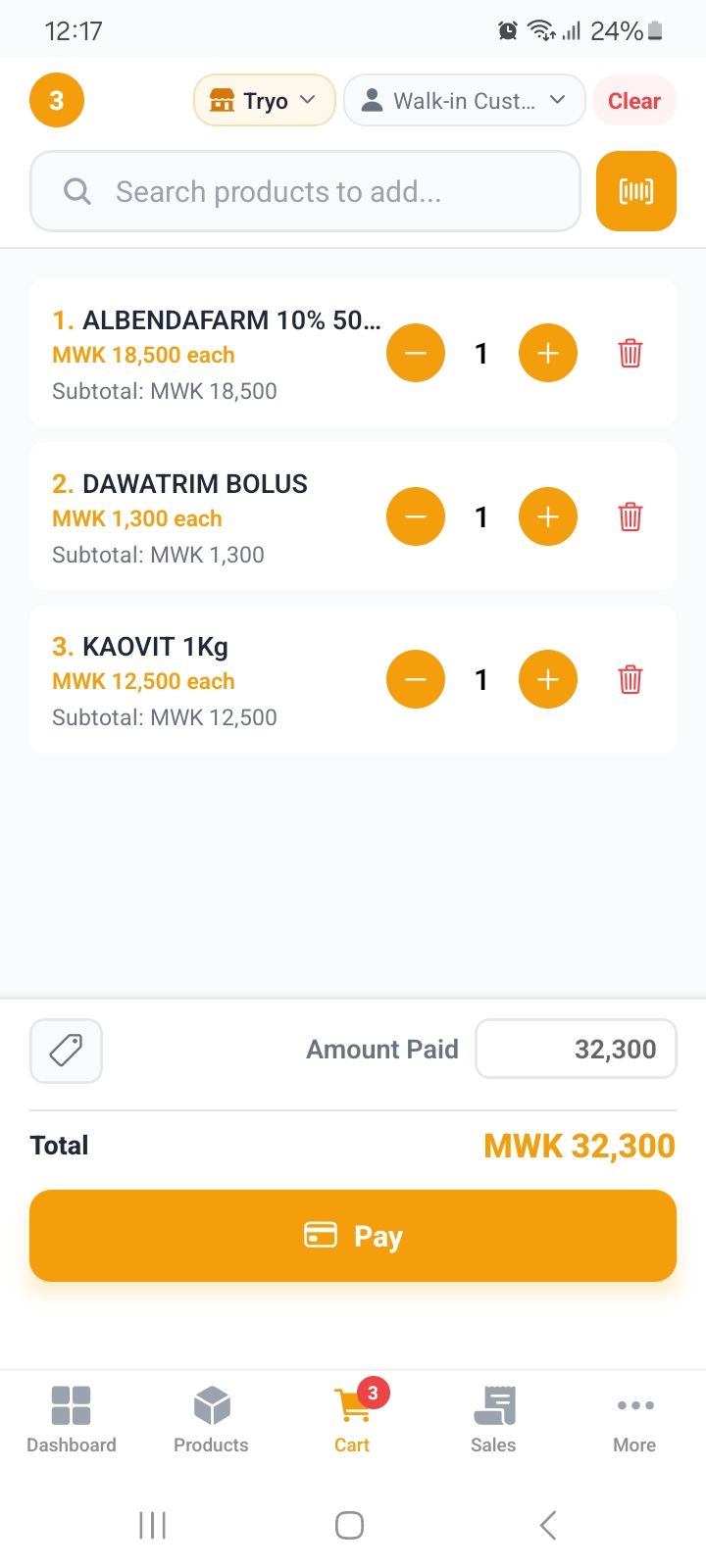
Open Cart, then either scan the barcode or search:
- Scan: open the scanner and point it at the barcode. The item lands in the cart.
- Search: type part of the name, SKU or barcode and tap the result.
- Tap a product in the list to add one.
Change quantities with the plus and minus controls, or type a number. Each line has a remove button, and the item menu applies a discount to just that line.
Choose how they pay
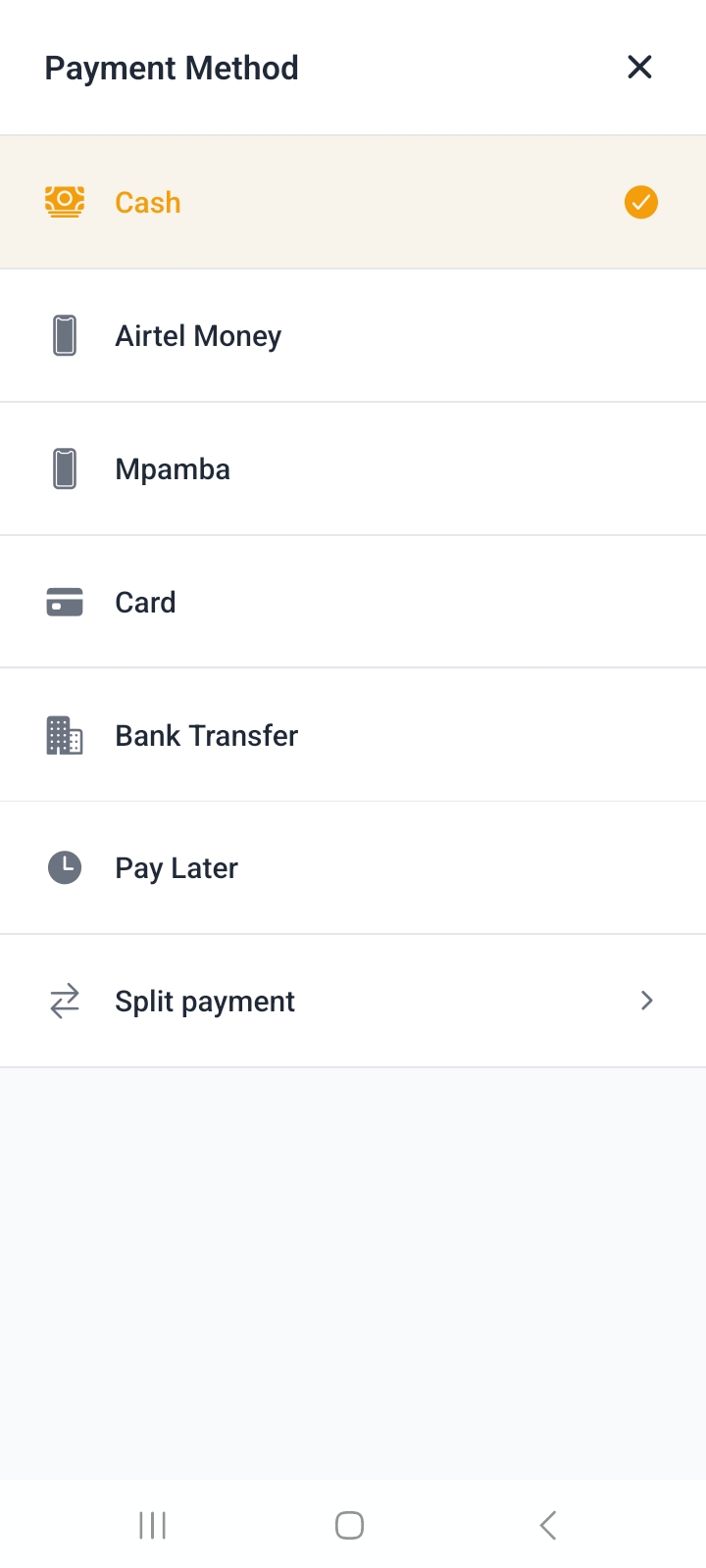
| Method | Needs a connection? |
|---|---|
| Cash | No: works fully offline. |
| Airtel Money | Yes. |
| Mpamba | Yes. |
| Card | Yes. |
| Bank Transfer | Yes. |
| Pay Later | No, but a customer must be attached. |
Split a payment across methods by adding tenders: part cash, part mobile money, for example.
Enter the amount handed over and the Change figure updates on its own. Type nothing and the exact total is assumed.
Sell without a connection
Cash sales go through with no signal at all. Mobile money, card and bank transfer are still accepted while offline, but the tender is recorded as unverified until the connection returns and it can be confirmed.
While offline the pay button reads Save Offline instead of Pay: the sale is saved on the device first and uploaded later, so nothing is lost. See Offline mode for what that looks like in the Sales list and how to check the upload.
Take money later with Pay Later
Pay Later records the sale now and leaves the balance for you to collect afterwards.
| Rule | Why |
|---|---|
| A customer must be selected | Somebody has to owe the money. You can add the customer from the cart. |
| Not available to cashiers | Only managers and owners can extend credit. |
| Shows as Pending or Partial | The Sales list filters on it, so you can chase balances. |
The outstanding amount appears in the reports under Unpaid Sales, listed by customer with the oldest debt first.
Finish and hand over the receipt
Tap Pay, confirm the total, and the sale is recorded.
You can then print the receipt or share it. Receipt settings live in Settings, then Printer & Receipts: pick Bluetooth printer or System dialog, the paper width, and whether receipts print automatically.
See Printing receipts if the printer is not cooperating.