Set it up
Open Settings, then Printer & Receipts:
| Setting | What it does |
|---|---|
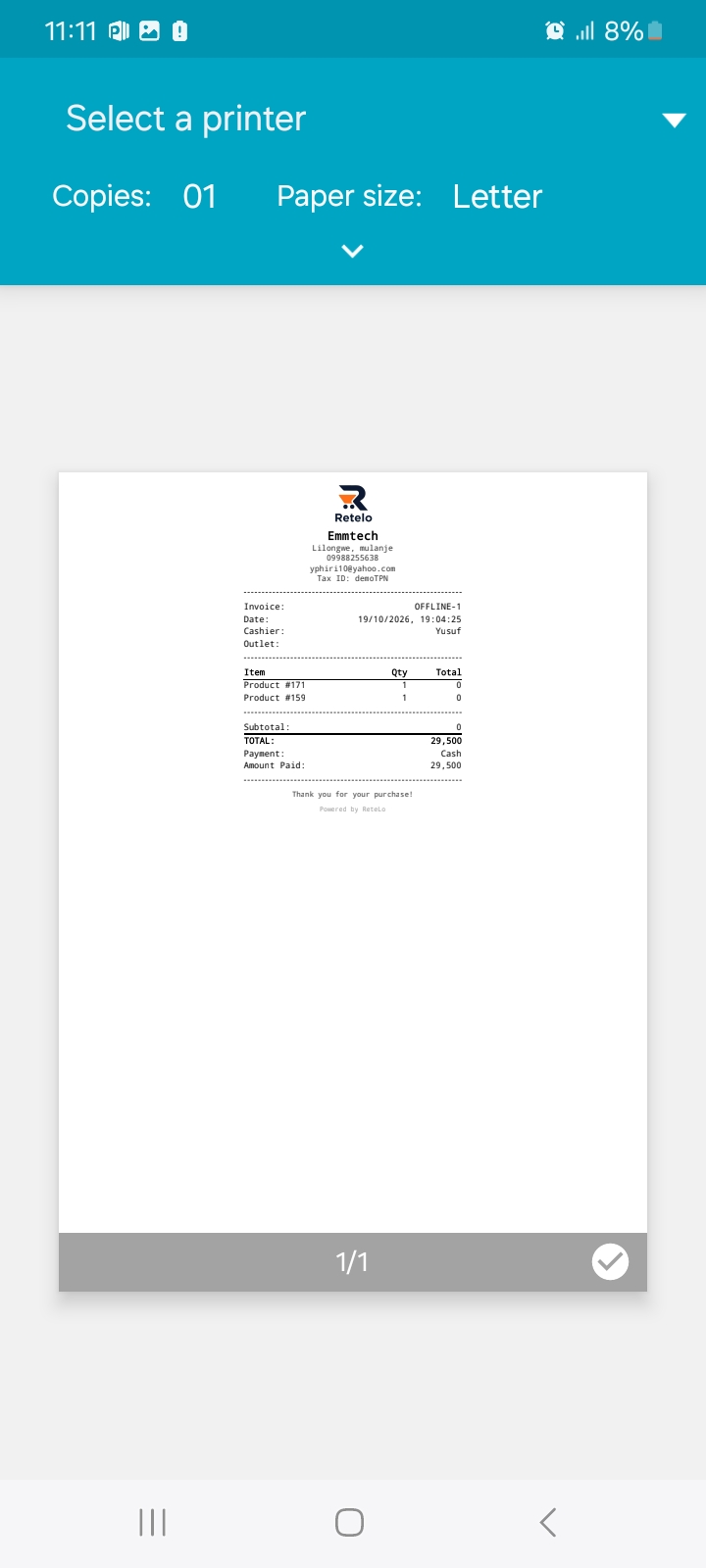
| Output | Bluetooth printer sends straight to the till printer. System dialog hands the receipt to Android, which is how you get to a USB or network printer, or save a PDF. |
| Paper width | Matches your roll, so lines wrap where they should. |
| Auto print | Prints the receipt as soon as a sale completes, instead of asking. |
Pair the printer in Android settings first (Settings, then Connected devices), then choose it when the app asks.
Printing a receipt
With Auto print on, completing a sale prints it without a tap.
With it off, finish the sale and choose to print from the receipt that appears. You can also reprint from a past sale: More, then Sales, open the sale, and print again.
A reprint is marked as such, so a duplicate is never mistaken for a second sale.
When nothing prints
| Symptom | Likely cause | Fix |
|---|---|---|
| No reaction at all | Printer not paired, or out of range | Pair it in Android settings and charge it. |
| Blank or cut off lines | Wrong paper width | Set the width to your roll. |
| Garbled text | Wrong printer type | Pair the printer again and pick the receipt printer. |
| Prints but is queued behind everything else | The print queue is stuck | Android's print spooler is holding old jobs. |
| Nothing appears in the list | Output still on System dialog | Switch output to Bluetooth printer. |
The spooler is Android's print queue. If jobs are stuck there, old print requests pile up ahead of your receipt.
If the printer works from another app but not from this one, the problem is the pairing rather than the receipt itself: pair it again and try again.